
Video Links
Transcribe a video from its link — YouTube, Instagram, TikTok and more
Paste the link of a video and Speakly downloads its audio and transcribes it. It is not only YouTube: the same downloader reads more than 1500 sites, Instagram reels and TikTok among them.
How to use
- Click Links in the left sidebar — it is its own item, below Transcribe Media, not part of it
- Click New Transcription to open Transcribe a video from a link
- Paste the link in the field ("Paste a video link here...")
- Choose Transcription engine and Model for this video — the same picker as Meetings, with each provider's logo. The choice is remembered for the next video and does not change the dictation engine
- Set Speech language to the language spoken in the video
- Click Transcribe Video
Which links work
- A single video's page. YouTube (including Shorts), Instagram posts and reels — both
/reel/and/reels/— TikTok, X, Facebook, Vimeo, Twitch, LinkedIn and the rest of the 1500+ sites the downloader supports. - A channel, profile or playlist link is refused, with
This link is a channel, profile or playlist, not a single video.Open the video itself and paste its own link. - Public videos need no account. Anything a site shows only to signed-in users — a private account, an age-restricted video — needs you signed in to that site in Chrome, Firefox, Brave or Edge; Speakly retries the download with that browser's cookies before giving up.
- If a site blocks the download, Speakly updates its downloader to the newest version and tries again, then tries with your browser's cookies. The message then names the site and what to do.
Limits
- Videos up to 2 hours; longer ones fail with
Video is too long (… min). Maximum duration is 120 minutes for transcription. - Over 8 minutes the audio is split into 9-minute chunks and merged back into one transcript
- Chunked videos keep their timestamps: each chunk's segments are shifted onto the full timeline and the ten seconds of overlap are trimmed, so a two-hour video has real times all the way through
- Some sites publish no duration at all — Instagram is one — so the preview shows none before transcription. The real length appears on the saved transcription, measured from the audio itself.
Progress while it runs
The dialog names the stage it is in and, once transcription starts, draws a real bar with a percentage: Downloading audio..., then Converting format..., then Transcribing (may take a while for long videos)....
- Preparing the audio… — a second line under the stage, while the audio is read and, for a video long enough to be split, re-encoded into parts. On a two-hour video that happens before any words appear.
- Part x of y — shown while each part is transcribed, with the percentage climbing next to the stage.
- Complete! — the parts have been merged into the final transcript.
With the Local Model (On-Device) engine the percentage also moves inside each part, because the local engine reports its own decoding progress. Cloud engines answer a part in a single request and cannot report anything in between, so there the bar advances part by part.
The result
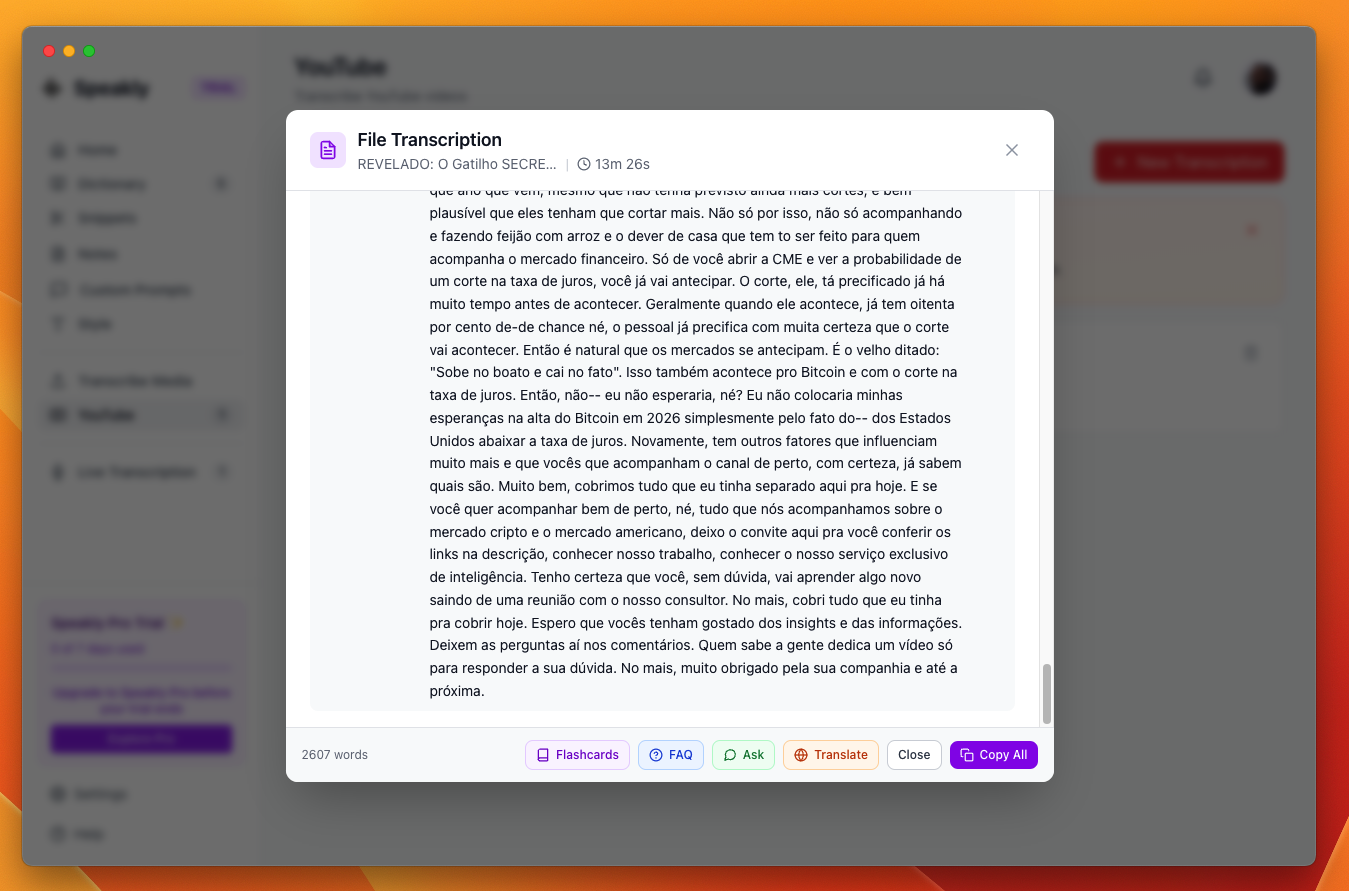
- The video title and duration in the dialog header, plus the word count
- The transcript as timestamped lines, grouped so a line ends where the sentence ends
- AI actions: Flashcards, FAQ, Ask, Translate
- Copy All copies the whole transcript; Close dismisses the dialog
Timestamps and the player
For a YouTube link the video is embedded above the transcript, and every timestamp is a button — its tooltip is "Jump to this moment" — that moves the player to that second and plays from there. The player appears on the transcript view only; it is hidden on Flashcards, FAQ, Ask and Translate, where it would keep playing behind the text. Links from other sites have no embedded player: the transcript and its timestamps are all there, but there is no video to jump.
- Lines are grouped at sentence ends instead of one line per engine segment. Speech without punctuation still breaks: a group is cut after 320 characters or 30 seconds.
- A group keeps the start of its first segment, so a click lands where the sentence begins.
- If the embedded player is not yet answering, the click reloads the embed at that second instead — slower, but it always lands.