
Writing Style
Choose your output style
Style decides capitalisation, punctuation and tone. Open the main window and pick Style in the sidebar.
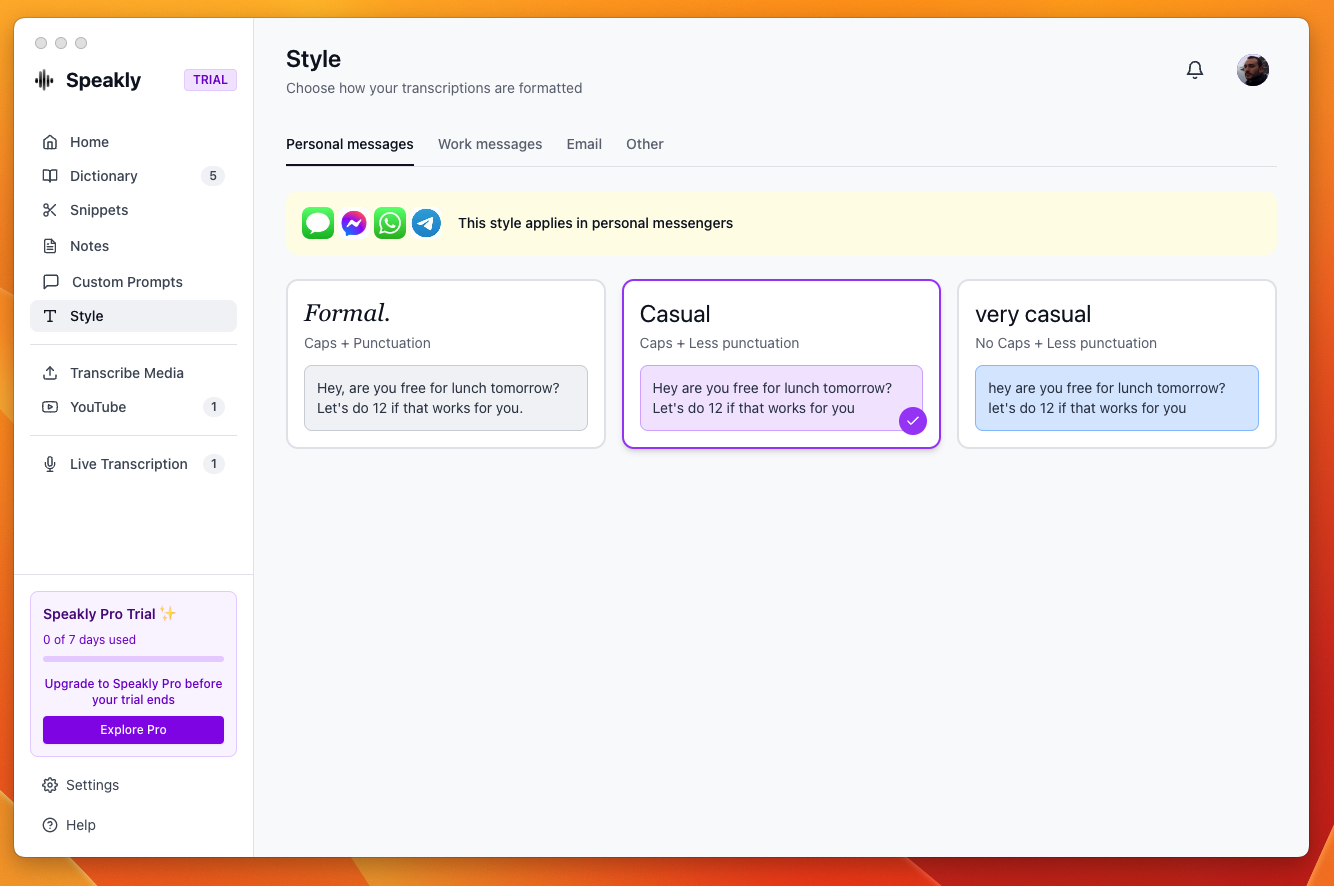
Four contexts, four separate choices
The page has four tabs and each one stores its own style. You do not switch tabs while dictating: Speakly reads which app is in focus when you record and uses that tab's style. Email apps are matched first, then workplace apps, then personal messengers; anything else falls to Other.
- Personal messages — "This style applies in personal messengers". Default: Casual.
- Work messages — "This style applies in workplace messengers". Default: Formal.
- Email — "This style applies in all major email apps". Default: Formal.
- Other — "This style applies in all other apps". Default: Casual.
The four styles
- Formal. — Caps + Punctuation
- Casual — Caps + Less punctuation
- very casual — No Caps + Less punctuation
- Excited! — More exclamations
Each tab offers three of the four. very casual appears only under Personal messages. Excited! appears under Work messages, Email and Other. Every tab offers Formal. and Casual.
Changing a style
- Open the main window and pick Style in the sidebar.
- Click the tab for the context you want to change.
- Click one of the three style cards. The choice saves immediately and a check mark marks the active card.
Style only reaches some transcription engines
Style is delivered as a hint to the transcription model. It applies with OpenAI, Groq, Mistral and a custom OpenAI-compatible endpoint. With the local model, ElevenLabs, Google or Deepgram the page shows the banner "Style won't apply to your current transcription engine" — switch engine in Settings → Transcription if you want Style to have an effect.
Style is not post-processing
Style never runs an LLM, so it cannot restructure a sentence or write an email for you. For that, create a rule in Custom Prompts — see /docs/post-processing/custom-prompts.