
File Transcription
Transcribe audio and video files
Speakly transcribes audio and video files you already have: recorded meetings, interviews, voice memos, lecture videos.
How to use
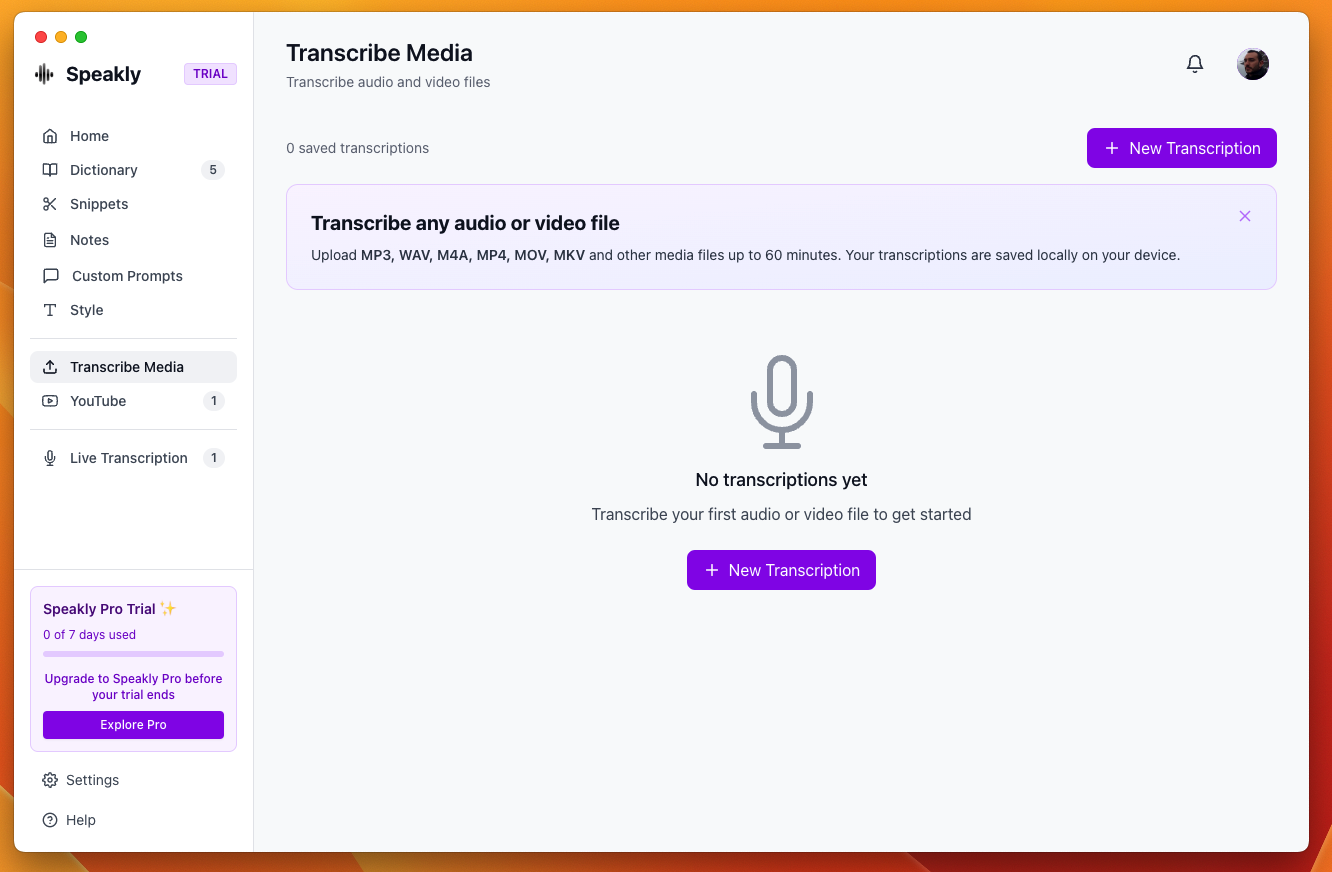
- Open Transcribe Media in the left sidebar (that is the tab's real name)
- Click New Transcription — the Transcribe Media File dialog opens
- Drop the file on the dashed area ("Drop audio or video file here") or click Choose File
- Set Media Language — "Select the language spoken in the media for better accuracy"
- Click Start Transcription
Supported formats
- Audio:
.mp3,.wav,.m4a,.ogg,.webm,.flac,.aac,.wma - Video:
.mp4,.mov,.avi,.mkv
.webm counts as audio here, not video. Other extensions are ignored when dropped and rejected with an Unsupported media format error if they reach transcription.
Limits
- Maximum duration: 2 hours. Longer media is refused with
Audio too long (… min). Maximum is 120 minutes. - Anything longer than 8 minutes is split automatically into 9-minute chunks with a short overlap, transcribed chunk by chunk, then merged into one transcript
- The dialog states the same limit: "Audio and video files up to 2 hours. Long files are automatically split into chunks."
- Chunking no longer costs you the timestamps: each chunk's segments are shifted onto the full timeline, so the merged transcript has real times across the whole file instead of a single 00:00
Progress while it runs
A file transcription no longer shows only a spinner. The dialog names the phase it is in and draws a bar with a percentage, so a long video visibly moves instead of leaving you wondering whether it is stuck.
- Preparing the audio… — Speakly reads the file and, when it is long enough to be split, re-encodes it into parts. On a long video this whole stretch happens before a single word is produced.
- Transcribing media… — the parts are transcribed one after another. A file long enough to be split also shows Part x of y under the phase.
- Putting it together… — the parts are merged into one transcript.
With the Local Model (On-Device) engine the percentage also moves *inside* each part, because that engine reports its own decoding progress as it goes. A cloud engine answers a whole part in one request and has nothing to report in between, so with a BYOK provider the bar advances part by part.
Where the file is processed
A fresh install starts on the local model; Windows onboarding preselects a cloud provider instead. Either way, the finished transcription is stored only on your device.
Timestamps
The transcript is shown as timestamped lines, grouped so a line ends at the end of a sentence rather than every few seconds; where the speech has no full stop, a line is cut after 320 characters or 30 seconds. Engines that return no timestamps at all still produce one line covering the whole file.
The timestamps here are labels, not buttons. Seeking needs a player to drive, and only YouTube transcriptions embed one — see YouTube Transcription. For a local file you read the time and use it in your own player.