
YouTube Transcription
Transcribe YouTube videos
Paste a YouTube URL and Speakly downloads the audio and transcribes it.
How to use
- Click YouTube in the left sidebar — it is its own item, below Transcribe Media, not part of it
- Click New Transcription to open Transcribe YouTube Video
- Paste the link in the field ("Paste YouTube URL here...")
- Set Video Language to the language spoken in the video
- Click Transcribe Video
Limits
- Videos up to 2 hours; longer ones fail with
Video is too long (… min). Maximum duration is 120 minutes for transcription. - Over 8 minutes the audio is split into 9-minute chunks and merged back into one transcript — the dialog says "Supports videos up to 2 hours. Long videos are automatically split into chunks."
- Chunked videos keep their timestamps: each chunk's segments are shifted onto the full timeline and the ten seconds of overlap are trimmed, so a two-hour video has real times all the way through
Progress while it runs
The dialog names the stage it is in and, once transcription starts, draws a real bar with a percentage: Downloading audio..., then Converting format..., then Transcribing (may take a while for long videos)....
- Preparing the audio… — a second line under the stage, while the audio is read and, for a video long enough to be split, re-encoded into parts. On a two-hour video that happens before any words appear.
- Part x of y — shown while each part is transcribed, with the percentage climbing next to the stage.
- Complete! — the parts have been merged into the final transcript.
With the Local Model (On-Device) engine the percentage also moves inside each part, because the local engine reports its own decoding progress. Cloud engines answer a part in a single request and cannot report anything in between, so there the bar advances part by part.
The result
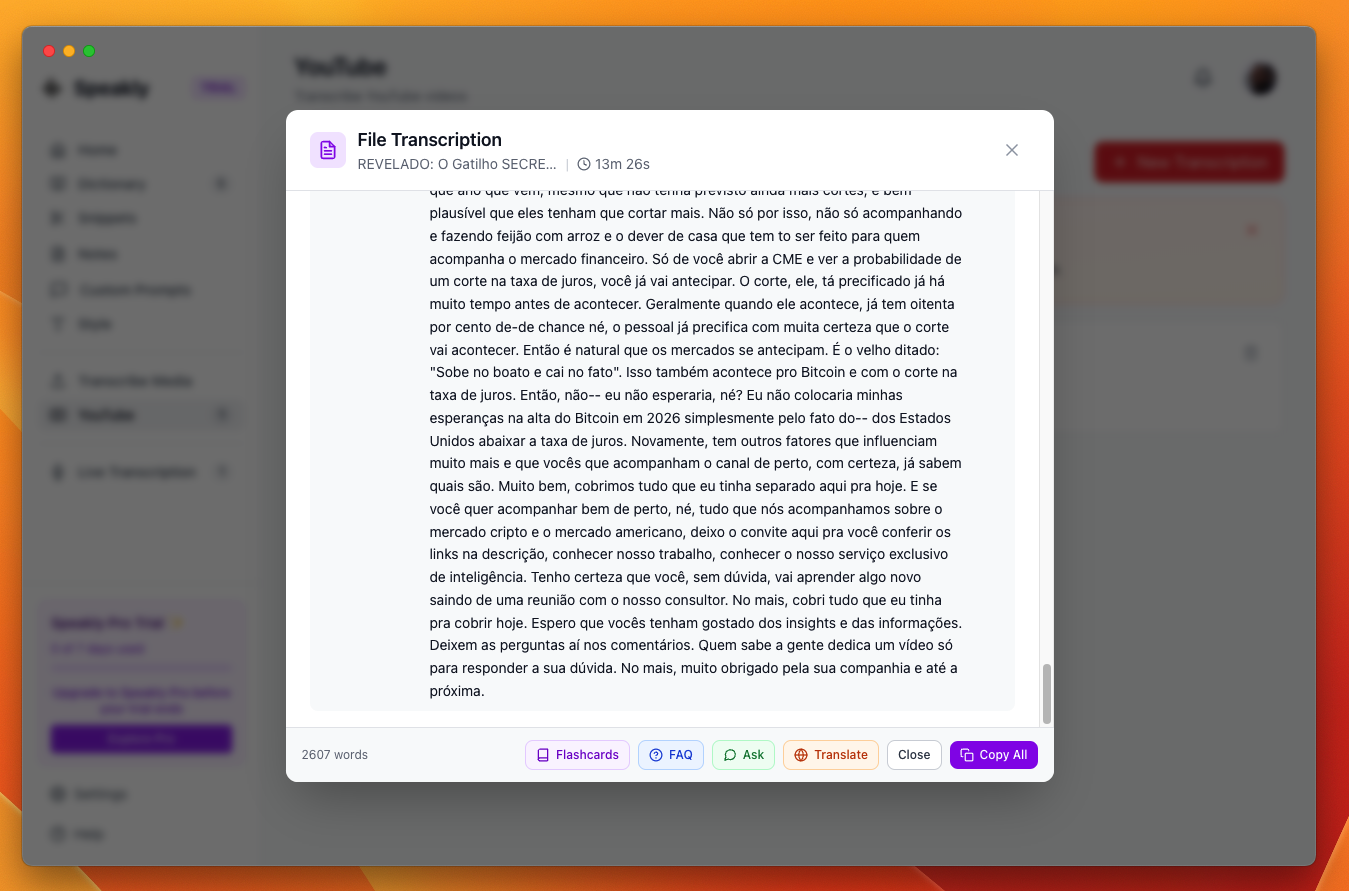
- The video title and duration in the dialog header, plus the word count
- The transcript as timestamped lines, grouped so a line ends where the sentence ends
- AI actions: Flashcards, FAQ, Ask, Translate
- Copy All copies the whole transcript; Close dismisses the dialog
Timestamps and the player
The video is embedded above the transcript, and every timestamp is a button — its tooltip is "Jump to this moment" — that moves the player to that second and plays from there. The player appears on the transcript view only; it is hidden on Flashcards, FAQ, Ask and Translate, where it would keep playing behind the text.
- Lines are grouped at sentence ends instead of one line per engine segment. Speech without punctuation still breaks: a group is cut after 320 characters or 30 seconds.
- A group keeps the start of its first segment, so a click lands where the sentence begins.
- If the embedded player is not yet answering, the click reloads the embed at that second instead — slower, but it always lands.