
Custom Prompts
Rules that rewrite your dictation
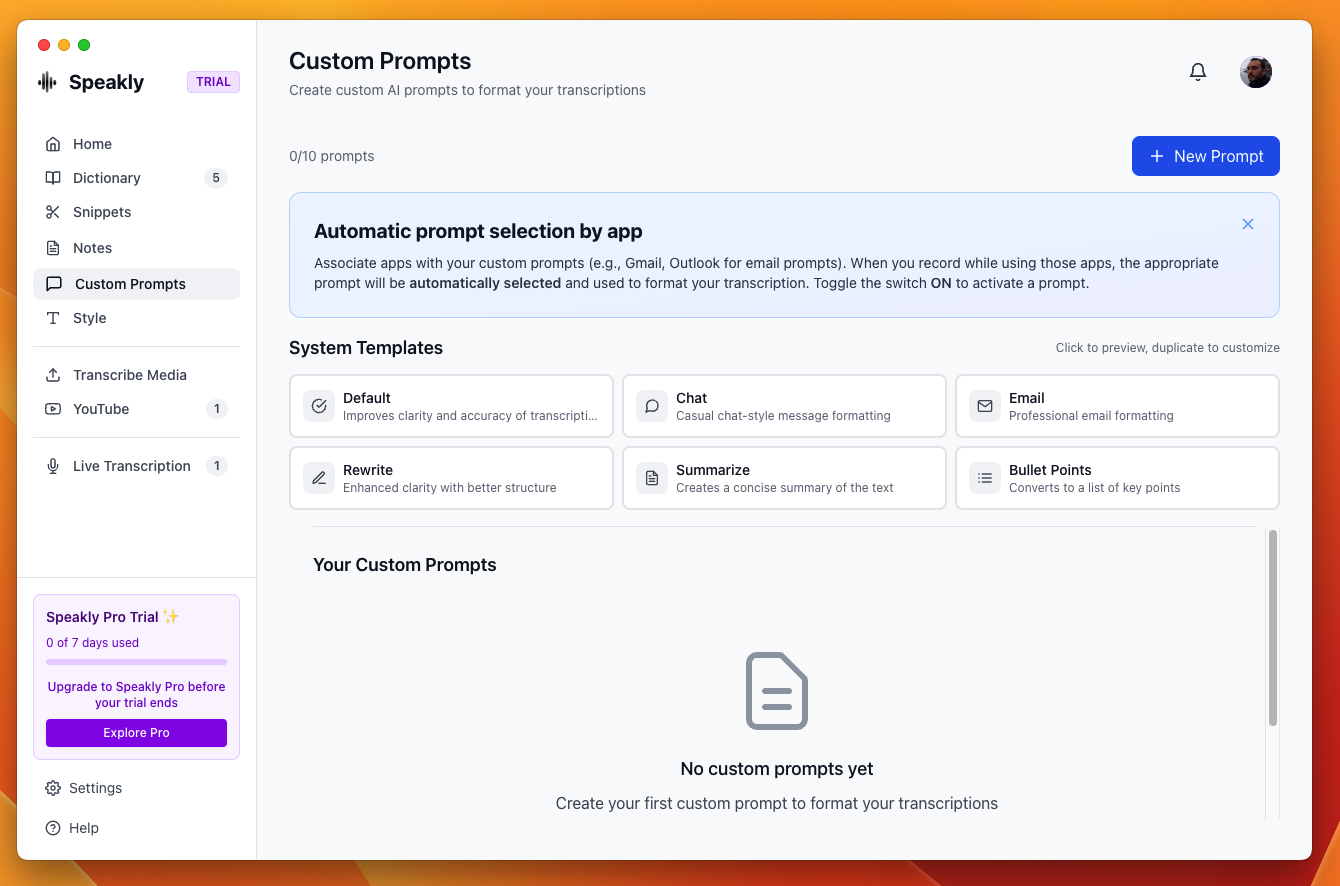
A custom prompt is a rule: when you dictate in an app the rule names, Speakly rewrites the transcription with your instruction and types the result in the language you picked. Each rule carries a name, the instruction, an output language and a list of apps — leave that list empty (Only when I pick it) and the rule never fires on its own; you choose it from the dot on the recording pill while you dictate. You can keep up to 10 — the counter next to the list heading reads 0 of 10. A custom prompt only ever runs on a fresh dictation — to rewrite text that is already on your screen, see Transforms.
How Speakly picks the rule
Only one rule runs per dictation: the first one whose apps match the app you are dictating into; otherwise none, and the text is typed exactly as transcribed. A rule with no app attached — the list shows it as Only when I pick it — never fires on its own; pick it from the dot on the pill while you dictate. A created rule is always on: there is no on/off toggle, so to stop a rule, edit or delete it. The prompt you pick by hand from the recording pill outranks the app-based rules, for the dictation being recorded and for that one only.
Choosing a prompt while you dictate
The rule Speakly picked is not the last word. While a dictation is running, the small dot at the left end of the recording pill opens a list that starts with Default — no post-processing, followed by your custom prompts. Choosing a prompt applies it to the dictation being recorded — post-processing is switched on for it — and to that one only: the next dictation starts clean, with the app-based rules deciding again. The dot is filled while a prompt is in effect; when you pick one yourself, its name also shows for a moment — above the Floating Pill, or inside the Dynamic Island — the way the microphone name does at recording start — a prompt applied by an app rule fills the dot silently.
- Click an entry, or type the digit shown beside it — the numbers on the rows are exactly the keys that pick them: 0 is Default, 1–9 are the prompts in order.
- ↑ ↓ move through the list, ⏎ picks the highlighted entry, esc closes it and changes nothing.
- Default — no post-processing, the first row, is the explicit way to switch post-processing off for this dictation, overriding the rule the app would have applied; it carries the checkmark while no prompt is applied. Picking the ticked prompt again still clears it too. Either way the choice never outlives the dictation: the next one starts clean.
- Numbers and arrows need Speakly's native key listener — macOS with Accessibility granted. Without it the list reads Click to choose and the picker is mouse-only.
Translate while you dictate
The bar at the top of the page creates the most common rule in one click: pick the language you speak and the language Speakly should type, then click Create rule. It is created with no app attached, so it never fires on its own — pick it from the dot on the pill when you want that dictation translated. Typical use: dictate in Portuguese inside Teams and send the message in English.
Creating a rule
- Open the main window and pick Custom Prompts in the sidebar.
- Click New Rule, top right.
- Fill in the Rule name.
- Step 1 — Where should it apply? Keep Only when I pick it or pick apps via Choose apps… — a rule with no app never fires on its own; you choose it from the dot on the pill while you dictate.
- Step 2 — What should the AI do with your text? Write it in your own words, or click the ingredient chips (Fix grammar & fillers, Translate only, Formal tone, Casual tone, Bullet points, Summarize, E-mail format) to build the instruction — they can be combined.
- Optional: tick Read my screen for context to send the text visible in the active window along with the dictation — replies can then reference what you're looking at (great for answering e-mails).
- Step 3 — Type in which language? Pick the output language, or Same as spoken to keep the language you dictated in.
- Check the preview sentence at the bottom and click Save rule.
Limits
- Up to 10 rules. At 10, New Rule is disabled.
- Rules are stored on your device, in Speakly's local database.
Writing the instruction
- Say what the output should look like, not what to think about.
- Name what must survive untouched — proper nouns, technical terms, links.
- State the tone you want, since a rule replaces the default formatting.
- Keep it to the transformation: the instruction runs on the transcribed text only.